
Slack install instructions
The following instructions will cover how customers can connect the Pagefreezer platform to their free, standard, or plus Slack instance in order to enable automatic archiving of your Slack data.
1. Log into Pagefreezer
2. From the dashboard, click the “Settings” option in the top menu.

3. Select “Integrations”. Under “Slack” click “Connect”.

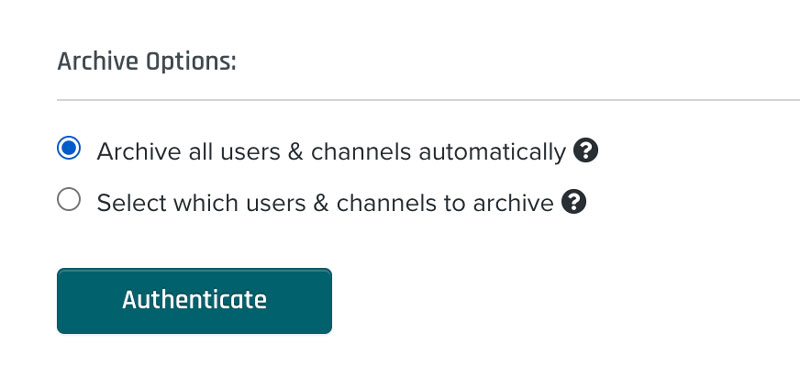
4. Choose whether you want to capture all Users & Channels or just specific Users and Channels (Note: for non-enterprise Slack workspaces, only public channels will be captured)
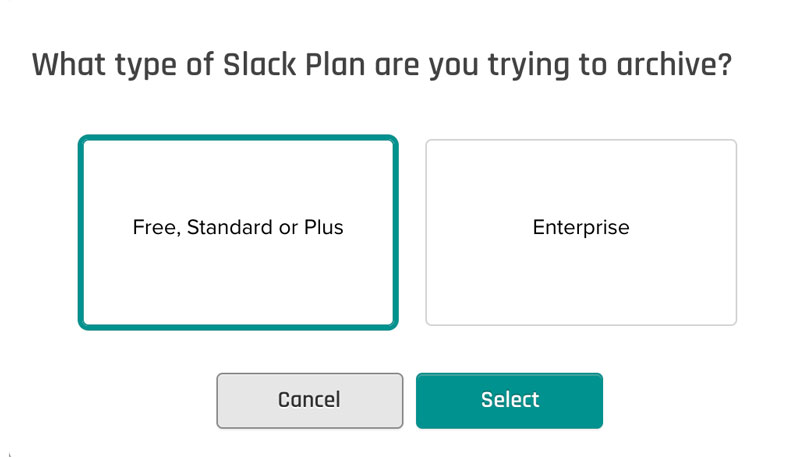
5. Select your Slack Plan. (Note: Enterprise will be available via a separate Slack app in the Slack App directory)
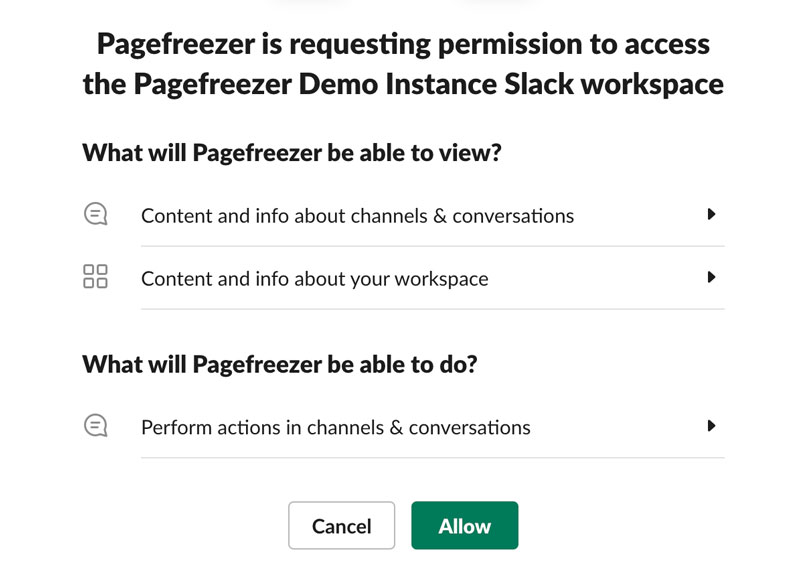
6. You will be redirected to authenticate with Slack. Follow the prompts to log into Slack and select your workspace.
7. Review the permissions required and select “Allow”.
8. You will be redirected back to Pagefreezer and the setup will be complete.
support@pagefreezer.com
Hoofdkantoor:
#500-311 Water Street
Vancouver, BC V6B 1B8
Canada
Europa Kantoor:
Van Leeuwenhoekpark 1 - Office 5
2611 DW, Delft
The Netherlands
UK Kantoor:
+44 20 3744 7173
Australia Kantoor:
+61 (07) 3186 2199

© 2023 Pagefreezer Software Inc. Alle rechten voorbehouden. Privacy Policy and Acceptable Use Policy. Commercieel gebruik en distributie van de inhoud van deze website is niet toegestaan zonder uitdrukkelijke en voorafgaande schriftelijke toestemming van Pagefreezer Software Inc. onder voorbehoud van bestaande copyright uitzonderingen en beperkingen.
